PDF Reader: Scan & Manage File
3.07.00Reviews
Analysis ByAppCompare
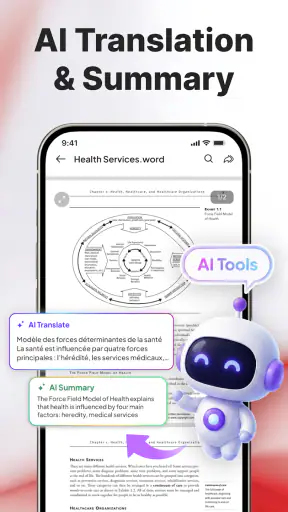
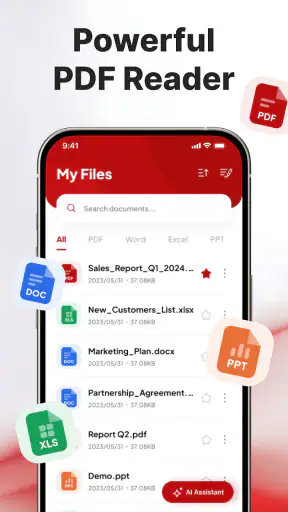
I look at PDF Reader: Scan & Manage File as a practical file utility rather than a complete replacement for every office app. It is designed for reading, scanning, converting, signing, and organizing PDFs, Word files, Excel documents, and other formats in one place. That broad purpose is useful when I want to handle a document quickly without jumping between several apps, although the experience is best understood as a convenient all-rounder instead of a specialist tool for demanding office work.
In my testing mindset, the strongest reason to try it is simplicity. A person who receives a PDF, needs to inspect a spreadsheet, or wants to prepare a signed document can start with one productivity app instead of searching for separate readers and file utilities. The app is free, suitable for everyone, and developed by AGS-Stiftung. Its current version is 1.0.1, which makes the present experience especially important: this is a relatively early product, so I would judge it by how well its central workflow works today rather than by promises about what it might become.
How the current version fits everyday document work
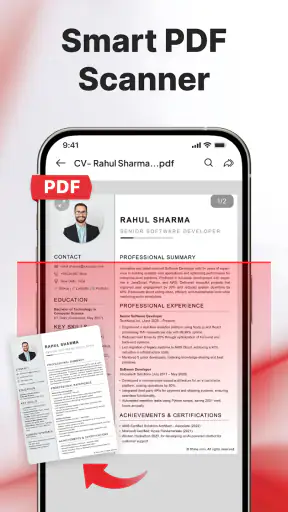
The app’s role becomes clearest in ordinary situations. Imagine receiving a form by email while away from a computer. I would use a mobile document app to open it, check whether the text is readable, scan a related paper, convert the material if needed, and sign the finished file. Having those actions grouped together can save time, especially when the task is occasional and I do not want to learn several interfaces.
It also makes sense for students, families, freelancers, and small teams that mainly need to view and move documents around. A student might read a PDF handout, scan a page of notes, and keep the resulting file with other coursework. A freelancer could review a client document and add a signature before sending it back. Someone managing household paperwork may appreciate having a single place for forms, receipts, and office files rather than treating every document as a separate technical problem.
That convenience has a clear limit. Reading a document is a different job from editing a complex spreadsheet, redesigning a word-processing file, or preparing a legally sensitive signature workflow. I would be comfortable recommending this app for quick mobile handling, but I would still use a dedicated office suite for advanced formatting and a specialized signing service when audit trails or formal business controls matter.
The broad format support is another practical advantage. The app is intended to work with PDF, Word, Excel, and other file types, so I would not need to decide in advance which document category I am about to receive. That matters on a phone, where switching apps can interrupt the task and make it harder to remember where a file was opened or saved.
At the same time, broad support can mean that each format receives a lighter treatment than it would in its native application. A PDF reader can focus on stable page display, while a spreadsheet application must handle formulas, cell formatting, charts, and editing behavior. I would therefore treat the app as a document hub: useful for access and basic actions, but not automatically the best environment for deep work in every format.
What the early release tells me
The release history matters because the current version is 1.0.1. I read that as a sign to keep expectations realistic. A first-generation app can already be helpful, but its interface, compatibility, and workflow details may still be settling. The sensible approach is to begin with low-risk documents, learn how the app handles scanning and conversion, and only then make it part of a regular paperwork routine.
The release date is listed as August 1, 2026, so the product is presented as a new entry in the productivity space rather than a long-established office platform. I would not interpret that as a flaw by itself. Newer software can feel less burdened by legacy design choices, but it also has less visible history to reassure people who depend on a document tool every day.
For existing users, the move to version 1.0.1 should be viewed as a maintenance point in the product’s early life, not as proof that it has reached feature maturity. I would install it first on a device where I can easily recover original documents. Keeping the source file untouched is good practice whenever conversion, scanning, or signing is involved, regardless of which app is used.
That simple habit also helps separate the app’s convenience from the document itself. If a converted file looks different, I can compare it with the original. If a scan is unclear, I can rescan the page instead of losing the only copy. This is one of the most useful workflows for a young document utility: use it as a working copy station until its behavior becomes familiar.
Where it can save time
The scanning function is potentially most valuable when the document begins on paper. I would use it for a short form, a receipt, or a page that needs to be shared digitally. The best workflow is to prepare the paper before opening the camera, flatten creases, place it on a contrasting surface, and check every edge after capture. No scanning app can rescue text that was cut off or photographed in poor light.
Conversion is useful when the recipient needs a different file format, but I would inspect the result rather than assuming that the layout survived perfectly. Text-heavy documents usually have a better chance of staying readable than files containing unusual fonts, tables, columns, or embedded graphics. This is a key trade-off: conversion can make a file easier to use, yet it can also alter spacing or structure in ways that are not obvious at a quick glance.
Signing is another feature that sounds simple but deserves care. For an informal approval or a routine form, an integrated signature action can remove several steps. Before sending anything important, I would zoom in, confirm that the signature is placed on the intended line, and reopen the saved document to check the final appearance. A signature feature is convenient, but convenience should not replace reviewing the completed file.
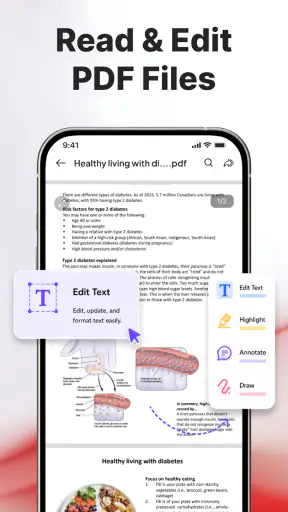
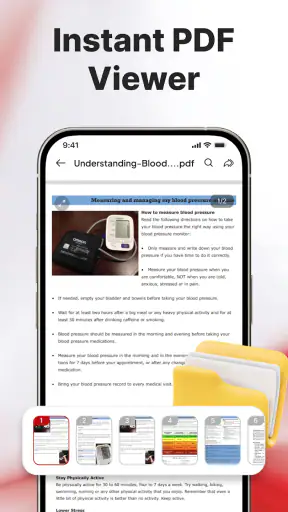
The reading experience is likely to be the part I would use most often. A dedicated PDF reader can be preferable to opening documents in a browser because it keeps the file task separate from unrelated tabs and pages. For quick reference, travel paperwork, study material, or a manual, that focused approach is sensible. However, readers who annotate heavily or manage very large professional documents may still prefer an established PDF specialist with a deeper markup system.
How it compares with familiar alternatives
Compared with using a phone’s browser, this app offers a more document-centered workflow. The advantage is less about one spectacular feature and more about reducing the number of handoffs between opening, scanning, converting, and signing. I would choose it when I want a single utility for mixed file tasks and do not need the full complexity of a desktop office suite.
Compared with a dedicated PDF application, the trade-off goes the other way. A specialist reader may offer more refined navigation, annotation, search, or document management. This app’s broader format coverage is more attractive when my files are mixed, but a PDF-heavy professional routine may justify a tool built around that one format.
Compared with Microsoft Word or Excel on mobile, the app appears better suited to viewing and handling different documents than to serious editing inside those formats. I would use the native office apps when formulas, advanced layouts, tracked changes, or collaborative editing are central to the job. I would use this app when the immediate need is to open, inspect, scan, convert, sign, or manage a file without building a full office workflow around it.
Cloud storage apps are also a natural comparison. They are often excellent for finding and sharing files, while this app is aimed more directly at document actions. In practice, I would expect to use both kinds of tools: storage for keeping originals organized and the reader for working on a file. The important habit is to know which copy is the source and which copy has been converted or signed.
Who should use it, and who should skip it
I would recommend this app to people who want a free, general-purpose document companion for a phone or tablet. It is especially suitable for occasional paperwork, mixed file formats, quick scans, and straightforward signatures. The Everyone content rating also makes it broadly approachable for household use, students, and casual productivity.
I would be more cautious about recommending it as the only document system for a business. A company may need controlled sharing, detailed revision history, dependable collaboration, or formal signing records. Those requirements call for careful evaluation and possibly a dedicated service. The same applies to users who edit complex spreadsheets or heavily formatted documents every day.
The public response suggests a mixed early impression: the app has an average rating of 3.0 from around 4.3 thousand ratings, alongside more than a million installs. I see that combination as a reason to test it personally rather than treating its popularity as proof of quality. It has clearly reached a substantial audience, but the middling average indicates that smooth results may depend on the device, document type, or workflow.
I would also avoid making it the sole place for irreplaceable records until I had verified how it fits my own storage habits. Important documents should remain backed up independently. That is not a criticism unique to this app; it is simply a sensible safeguard when scanning or converting originals on a mobile device.
What I would watch as the app develops
The next stage of the product should be judged by practical refinement rather than by adding a long list of headline features. I would watch for improvements to format compatibility, clearer handling of converted files, dependable scan results, and a smoother path from opening a document to saving the finished copy. Those details determine whether an all-in-one tool feels genuinely efficient.
I would also pay attention to how the app handles the boundaries between viewing and editing. Users need to know when they are looking at an original, when a new copy has been created, and whether a conversion may affect layout. Clear feedback in those moments would make the app safer for everyday paperwork and reduce accidental mistakes.
Its current scale is encouraging, but the rating means the developer still has room to earn trust. AGS-Stiftung has an opportunity to make version 1.0.1 feel like a stable foundation by concentrating on reliability and predictable document handling. For me, those improvements would matter more than decorative changes because productivity software succeeds when it quietly prevents friction.
After using it as a general document utility, my opinion is positive but measured. Its real strength is bringing several common mobile document tasks into one approachable place. That makes it worth trying for free, particularly if your needs are occasional and varied. I would not replace a full office suite, a specialist PDF editor, or a formal signing platform with it without testing the exact workflow first.
For a reader deciding today, my advice is straightforward: start with a copy of an ordinary document, scan something simple, try a conversion, and inspect the saved result before relying on it for important paperwork. If that process feels clear and dependable on your device, PDF Reader: Scan & Manage File can become a handy part of your mobile productivity setup. If your work depends on advanced editing, collaboration, or formal document controls, keep it as a convenient reader and utility rather than your main office system.
FAQ
What is PDF Reader: Scan & Manage File used for?
PDF Reader: Scan & Manage File is designed to help you open, read, organize, and manage PDF documents from a mobile device. It can be useful for viewing downloaded files, checking documents received by email, and keeping paperwork in one place. Depending on the version installed, it may also include scanning, document conversion, search, annotation, sharing, and file-management tools.
Can PDF Reader: Scan & Manage File scan physical documents?
The application is intended to support document scanning, allowing users to capture pages with the phone’s camera and save them as digital files. Results can depend on lighting, camera quality, page alignment, and the condition of the original document. Before scanning important paperwork, check whether the app supports multi-page scans, automatic edge detection, OCR text recognition, and export to PDF in your region and current version.
Does PDF Reader: Scan & Manage File work offline?
Basic PDF reading and local file management generally work without an internet connection when the documents are already stored on the device. However, some features may require connectivity, including cloud synchronization, online storage, advertisements, document conversion, OCR processing, or account-related services. If offline access is important, test the main tools after downloading a file and switching to airplane mode.
Is PDF Reader: Scan & Manage File free to download and use?
The app may be available as a free download, but certain features can be limited by advertisements, usage restrictions, premium subscriptions, or one-time purchases. Advanced tools such as unlimited scanning, OCR, editing, cloud storage, password protection, or ad removal may not be included in the basic version. Review the store listing and in-app purchase details before starting a trial or subscription.
Is PDF Reader: Scan & Manage File safe for private documents?
The app can be convenient for storing and viewing personal documents, but users should still review its privacy policy and requested permissions before importing sensitive files. Avoid granting access that is not necessary for the features you use, and be careful when sharing documents or uploading them to online services. For passports, financial records, or confidential work files, confirm how data is stored, processed, and deleted.
Pros
- Opens PDFs quickly
- even when switching between several stored documents.
- Useful search tool helps locate words or phrases inside longer files.
- Supports document organization with folders for easier file management.
- Readable interface includes zoom controls for comfortable viewing on mobile screens.
- Can be convenient for accessing saved files while traveling or away from a computer.
Cons
- Some advanced tools may require a subscription or in-app purchase.
- Large scanned documents can take longer to load on older phones.
- Text recognition accuracy may vary with blurry or poorly lit scans.
- The app may request broad file access permissions on your device.
- Ads or promotional prompts can interrupt occasional document-management tasks.